Features
Everything Nexus does, and where it stops.
A native Windows app with one job: find what's actually holding a gaming PC back, explain it with real measurements, and change only what you've reviewed. Here is every part of it, limitations included.
Dashboard
Your PC at a glance, live.
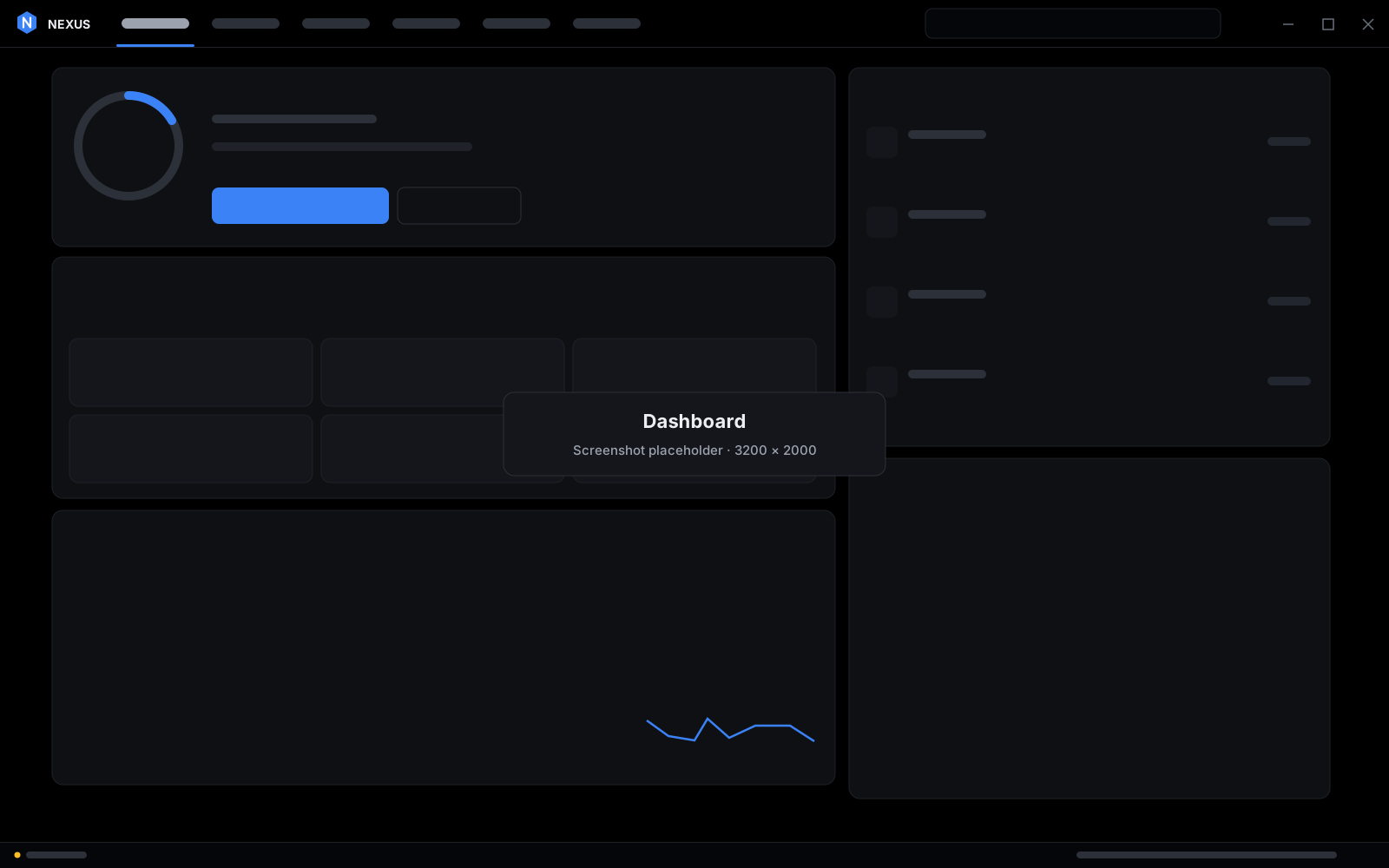
The Dashboard shows how ready this PC is and what's happening on it right now.
- A readiness score based on how many hand-picked recommended tweaks are in place.
- Optimize everything and progress for each of the 6 packs.
- Live CPU, GPU, memory and ping, each with history, plus a live performance chart.
- Quick actions, a PC summary and recent activity.
- A status bar on every page with privilege level, active changes and live readings.
Limitation: No CPU temperature. There's no reliable, vendor-neutral way to read it without a kernel driver, and Nexus never installs one.
Optimize packs
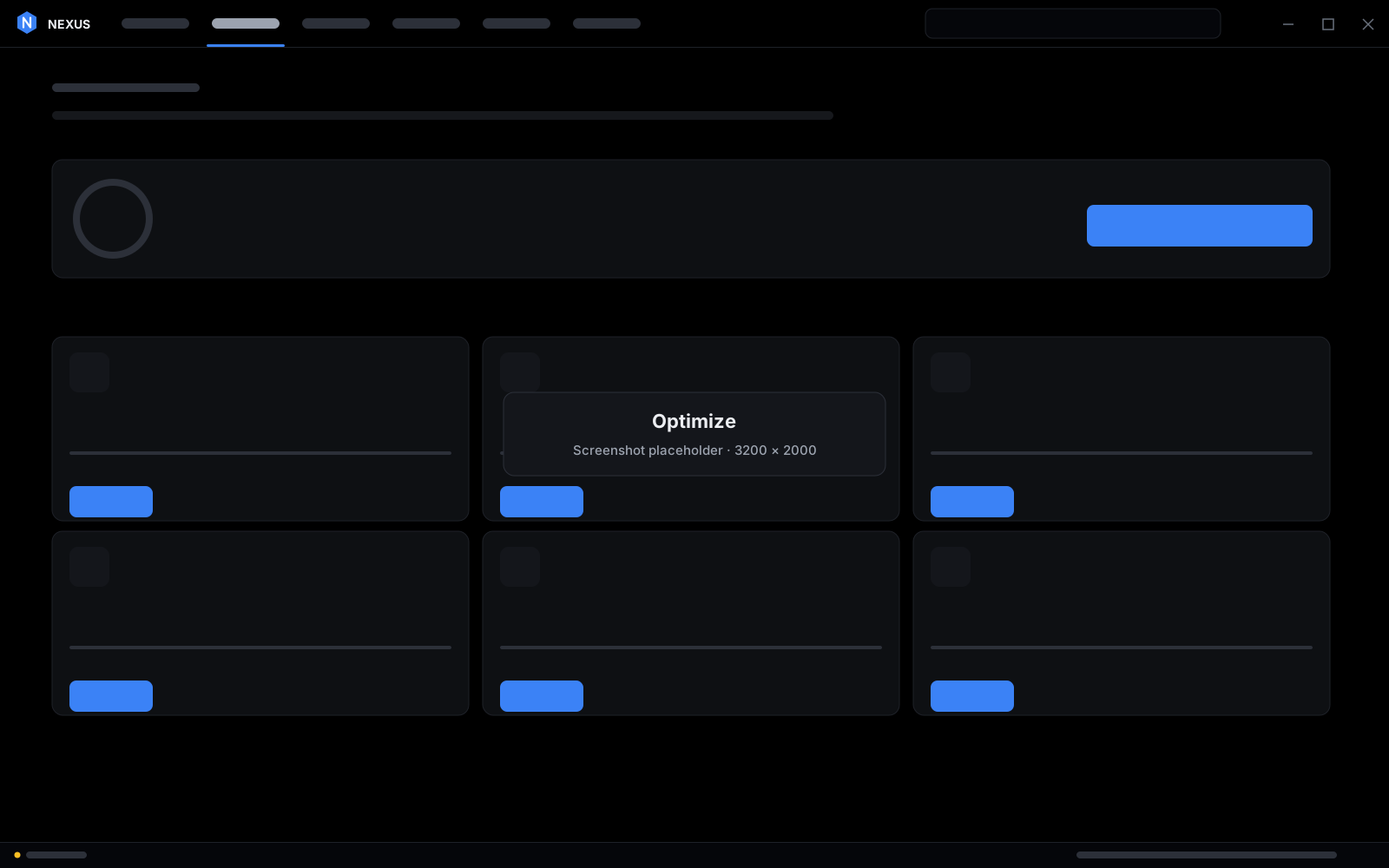
One click per goal, after you review it.
6 packs plus Optimize everything, built from 61 hand-picked recommended tweaks.
- Gaming performance, Network & latency, Privacy, Security hardening, Debloat, and Reliability & storage.
- Only Safe tweaks with Strong or Moderate evidence. Never services, never security features.
- Every pack opens the review screen, where each item can be unticked.
- Shows what's already in place, what's ready, and what doesn't apply to this PC.
Tweaks
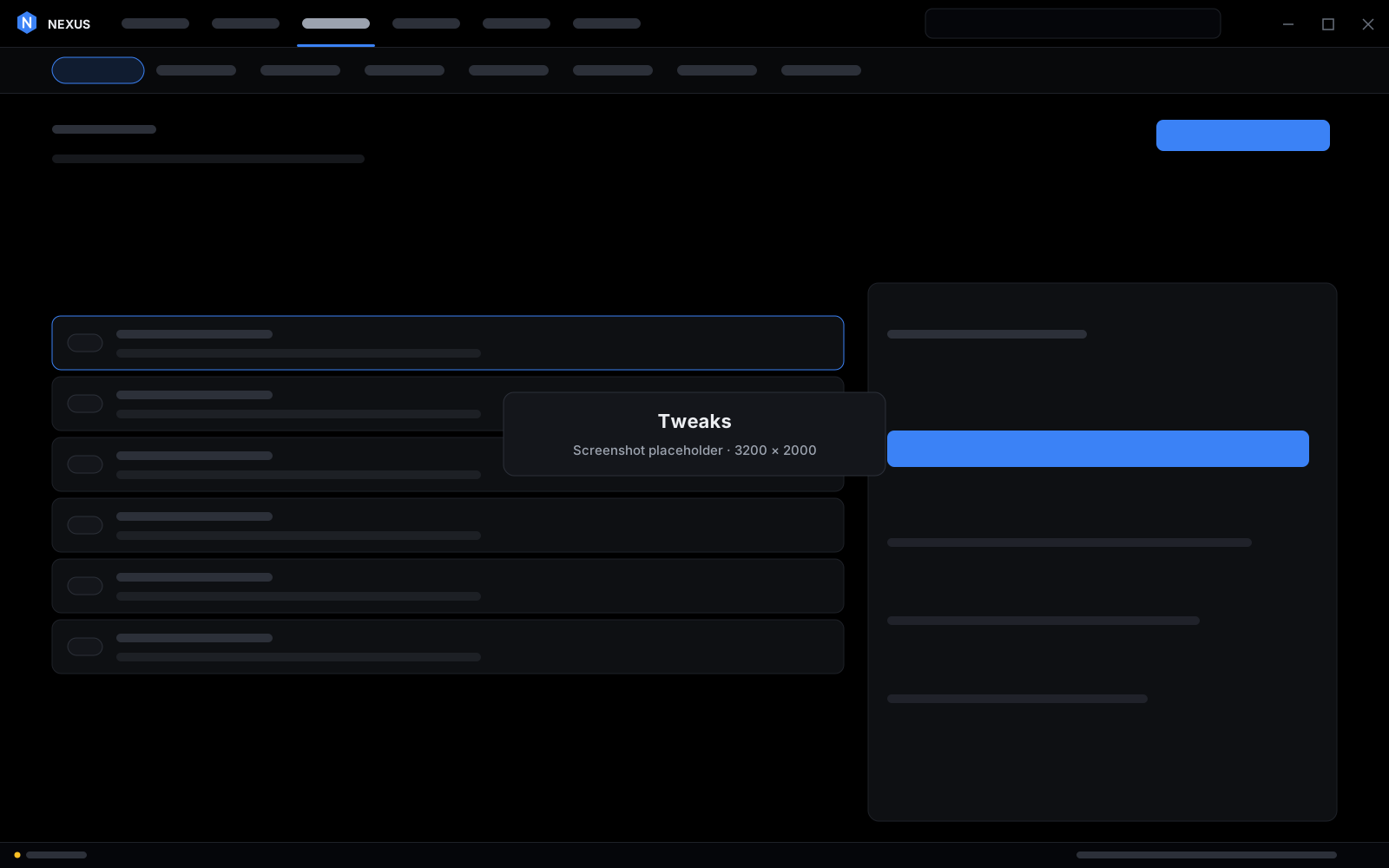
402 documented tweaks, labelled honestly.
Across 11 categories, each one a documented Windows setting, with a details panel that shows exactly what it changes.
- Group Policy, documented registry values,
powercfg, SystemParametersInfo, service start types, scheduled tasks and documented PowerShell cmdlets. No undocumented "FPS packs". - Every tweak has a risk, expected impact, evidence rating and purpose.
- Checked against your Windows build, edition, installed apps and network adapter. Anything else shows as not applicable.
- No two tweaks change the same setting, so undoing one never undoes part of another.
- Press Ctrl+K anywhere to jump to any page, tweak, fix or pack.
Game Booster
A reversible Gaming Session for the game you're playing.
Game detection, per-game settings, a readiness checklist and a session mode that puts everything back afterwards.
- Finds running games from your own list, Windows' Game Bar list, known launcher library folders and, as a last resort, sustained 3D GPU use. It always shows why.
- A Gaming Session puts chosen background apps in efficiency mode, can raise the game to Above normal priority (never High or Realtime) and can switch the power plan.
- Everything is restored when the session ends or the game exits. Nothing is closed or killed.
- A readiness checklist of things that measurably affect games, and a compact always-on-top view.
Network & Ping
Find out where lag actually comes from.
Measures your local link and your internet latency separately, so you can tell a Wi-Fi or router problem from ISP routing or server distance.
- Bufferbloat test: ping while idle, downloading and uploading, graded A+ to F.
- Latency, jitter and packet loss, local link vs internet.
- DNS timing and DNS switching.
- Wi-Fi details, traceroute and an HTTPS download test.
- Tests only run when you start them and say how much data they use. The live ping probe can be pointed elsewhere or turned off.
Benchmark
Before and after, with a significance test.
Same-duration runs, compared metric by metric, so you keep only the changes that measurably helped.
- Records CPU use, available memory, disk activity, GPU use, process count and network latency at a fixed interval.
- A change only counts as Improved or Worse when it's clearly larger than the run-to-run noise.
- Each run notes your configuration and which Nexus changes were active.
- Enter average and 1% low FPS from a game's own benchmark to compare them alongside.
Limitation: Nexus does not measure in-game FPS or frame times. It doesn't hook into games, so FPS can only be entered manually.
Crosshair
Your crosshair, drawn pixel-exact over any windowed game.
A designer with 8 styles and 12 presets, and a click-through overlay you toggle with a hotkey.
- Colour, length, gap, thickness, outline, dot, opacity and offset, with a pixel-exact preview.
- Save your own designs.
- A hotkey toggles the overlay (Ctrl+Alt+X by default).
- It's a separate window: it never reads or injects into the game.
Limitation: The overlay doesn't show over exclusive-fullscreen games. Switch the game to borderless or windowed.
Fixes & Repairs
15 Windows repairs, one click each.
Windows' own repair tools with fixed, known-good arguments, live output and a plain-language result.
- SFC, DISM RestoreHealth, component cleanup, chkdsk scan, SSD re-TRIM.
- DNS flush, IP renew, Winsock, TCP/IP and full network reset, time sync.
- Explorer restart, icon cache rebuild, Store cache reset, Windows Update reset.
- 10 app installs through winget, from the publisher: Google Chrome, Mozilla Firefox, Brave, Discord, Steam, Epic Games Launcher, 7-Zip, VLC media player, OBS Studio, Spotify.
Apps
Remove what you don't use. Tune what you do.
App Removal, App Optimizer and Cleanup: careful tools for apps and disk space.
- App Removal: 31 preinstalled Store apps, each removal with a Store reinstall link.
- App Optimizer: per-app CPU priority (Above or Below normal only), per-game GPU preference and fullscreen optimizations.
- Cleanup: safe temporary files only. Never shader caches, Prefetch, browser data, personal folders or the Recycle Bin.
Limitation: Removing a Store app and deleting temp files are one-way. Both ask for confirmation, and removed apps can be reinstalled from the Store link.
Hardware & System
Know your hardware. Check what matters.
Hardware, System Analyzer, Resources and a BIOS Guide.
- Drivers and displays, with a refresh-rate switcher that reverts after 15 seconds unless you confirm.
- System Analyzer: evidence-based checks of power plan, Game Mode, capture, refresh rate, drivers, memory, page file, storage, startup and network.
- Resources: memory, top CPU and memory users, running processes, startup apps and services.
- BIOS Guide: XMP/EXPO, Resizable BAR and similar settings, with what Nexus can detect. It never changes firmware.
Restore Center
Every change, with its original value and an undo button.
Restore Center records what Nexus changed and puts it back exactly.
- Undo one change, a group, or the last change.
- Restores use the recorded original, never a generic default, and verify the result.
- Refuses history entries that don't belong to the tweak, so tampered history can't make Nexus write elsewhere.
- Lists, creates and verifies Windows System Restore points.
- Exports change history and a diagnostic log.
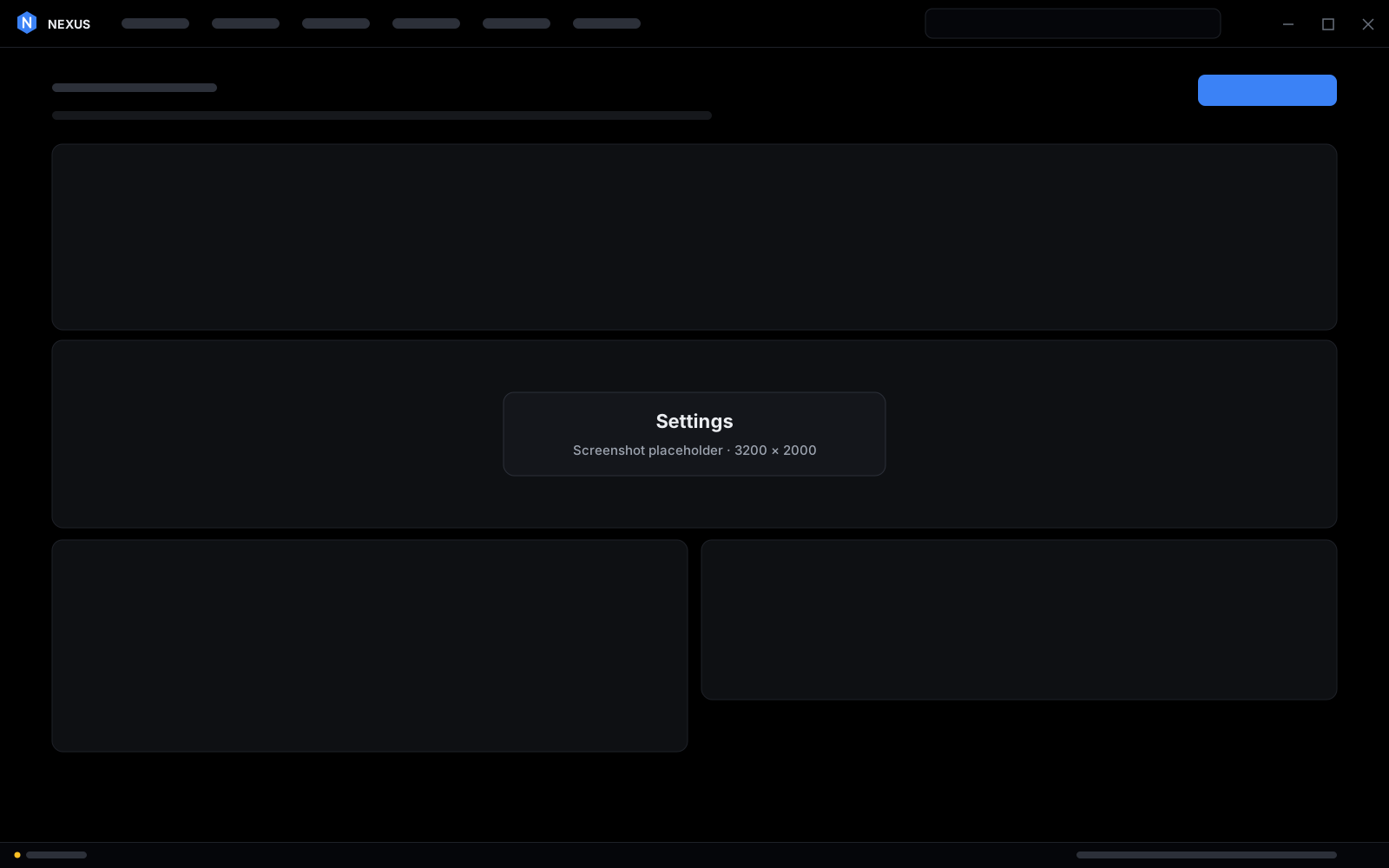
Settings
Black, flat and sharp on any screen.
A black background, one accent colour, and an interface that scales per monitor.
- 5 flat accent colours. No gradients, glows or blur.
- Scales from both Windows display scaling and the monitor's resolution, so 4K stays sharp. Interface size adjusts from 80 to 150% on top.
- Monitoring options, latency host and network test targets.
- Export and import tweak profiles to set up another PC the same way.